
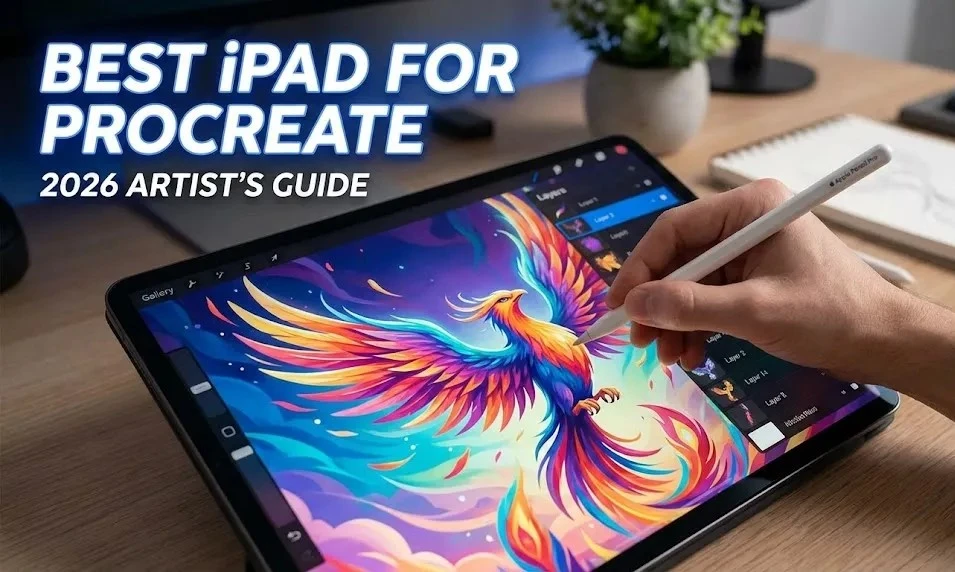
You’ve seen the incredible time-lapses on Instagram. You’ve watched the tutorials. Now, you’re ready to dive in, but you’re stuck on the first major hurdle: choosing the best iPad for Procreate.
Buying an iPad in 2026 isn’t just about picking the most expensive model; it’s about matching the hardware to your creative workflow. With the recent explosion of features like the Apple Pencil Pro’s barrel roll and the stunning Tandem OLED screens, the gap between “good” and “great” has widened. Whether you are a professional illustrator needing thousands of layers or a hobbyist sketching on the weekends, making the wrong choice can mean running out of storage—or worse, running out of RAM—mid-masterpiece.
In this guide, I’ll help you cut through the tech specs and find the perfect digital canvas for your art.
The “Big Three” Factors for Artists
Before we look at specific models, you need to understand what actually impacts your drawing experience in Procreate. Ignore the jargon; here is what matters to your stylus.
RAM: The Layer Limit King
Many artists make the mistake of prioritizing storage space (GB) over memory (RAM). In Procreate, RAM determines your layer limit.
- 8GB RAM: Standard on most Air and lower-tier Pro models. Sufficient for most print-quality illustrations (e.g., ~70 layers on a standard A4 canvas at 300 DPI).
- 16GB RAM: Only available on 1TB and 2TB iPad Pro models. This is for power users who need hundreds of layers for complex compositing or high-res animation.
Screen Real Estate
Size matters. The 13-inch models offer a canvas size comparable to a sheet of A4 paper, allowing you to draw without constantly zooming in and out. The 11-inch is more portable but can feel cramped if you use extensive reference images on the side.
The Apple Pencil Ecosystem
As of 2026, compatibility is split.
- Apple Pencil Pro: Features haptic feedback, squeeze gestures, and barrel roll. Only works with M4 Pros, M2 Airs, and Mini 7.
- Apple Pencil (2nd Gen): The old standard. Reliable, but lacks the new gesture features.
- Apple Pencil (USB-C): Budget option. Avoid this for serious art as it lacks pressure sensitivity.
Best Overall: iPad Pro M4 (13-inch)
If budget is not a constraint, the iPad Pro M4 is unequivocally the best iPad for Procreate available today. Released as the absolute pinnacle of Apple’s engineering, it solves the biggest complaint artists had with previous generations: weight.
Why It Wins
The M4 chip is comically powerful for 2D illustration, meaning you will experience zero lag even with huge brushes. But the real star is the Tandem OLED display. It offers perfect blacks and 1000 nits of brightness, making your colors look exactly as they will in print. Plus, the “Nano-texture” glass option (on 1TB/2TB models) provides a matte finish that dramatically reduces glare and adds a slight tooth to the screen, mimicking paper without a screen protector.
- Pros: unparalleled screen accuracy, thinnest design ever, supports Apple Pencil Pro.
- Cons: Expensive; the Nano-texture glass is a permanent commitment (you can’t take it off like a screen protector).
Best Value: iPad Air M2 (13-inch)
For 90% of artists, the iPad Air M2 is the smartest buy. Apple finally released a 13-inch version of the Air, democratizing the large canvas experience.
The Sweet Spot
You get the large screen experience of the Pro for significantly less money. The M2 chip is still overkill for Procreate, handling heavy rendering with ease. The main trade-off is the screen technology; it uses a standard Liquid Retina (LCD) display rather than OLED. It won’t have those “ink-deep” blacks, and it lacks ProMotion (120Hz refresh rate), so the pencil line might feel slightly less fluid than on a Pro.
However, unless you draw side-by-side with a Pro model, you likely won’t notice the 60Hz difference enough to justify the price hike.
Best for Travel: iPad Mini 7 (A17 Pro)
The iPad Mini 7 is a sketchbook that fits in your jacket pocket. Updated with the A17 Pro chip, it now supports the Apple Pencil Pro, making it a serious contender for professional work on the go.
Who It’s For
This is perfect for urban sketchers, concept artists who commute, or anyone who finds the 13-inch slabs unwieldy. The laminated screen feels incredible because the glass is so thin—it feels like you’re touching the pixels directly.
- Warning: The canvas size is small. You will be zooming and panning constantly. It is excellent for sketching and line art, but painting detailed backgrounds can be fatiguing.
Best on a Budget: iPad (10th Gen)
If you are just starting your digital art journey, the 10th Gen iPad is a capable entry point. It features a modern all-screen design and USB-C.
The Compromises
You miss out on the laminated display (there is a tiny air gap between the glass and the screen) and it only supports the USB-C Pencil or the 1st Gen Pencil (with an adapter). Crucial Tip: If you buy this, ensure you get a stylus that supports pressure sensitivity, or your brush strokes will look flat and uniform.
Quick Comparison: Which Should You Buy?
| Feature | iPad Pro M4 | iPad Air M2 | iPad Mini 7 | iPad 10th Gen |
| Best For | Professionals | Serious Hobbyists | Sketching/Travel | Beginners |
| Chip | M4 | M2 | A17 Pro | A14 Bionic |
| Pencil | Pencil Pro | Pencil Pro | Pencil Pro | USB-C / Gen 1 |
| Screen | OLED (120Hz) | LCD (60Hz) | LCD (60Hz) | LCD (60Hz) |
| Layers | Max | High | High | Moderate |
3 Mistakes to Avoid When Buying
- Buying the base storage (64GB): Procreate files record a time-lapse of your work, which bloats file sizes massively. 64GB will fill up in months. Aim for 256GB minimum.
- Ignoring the connection: If you buy an older refurbished iPad Air (4th gen), remember it doesn’t support the new Pencil Pro. Double-check your stylus compatibility!
- Underestimating connectivity: If you work with reference photos, you want a model that supports fast USB-C transfer speeds to move files from your camera or drive to the iPad quickly. The Pro M4 offers Thunderbolt speeds, while the 10th Gen has slower USB 2.0 speeds.
Frequently Asked Questions
Is the iPad Air 60Hz screen bad for drawing?
Not at all. While the 120Hz ProMotion on the iPad Pro looks smoother when scrolling or navigating menus, the 60Hz screen on the Air is still highly responsive. Most traditional artists transitioning to digital won’t feel a lag that hinders their ability to draw.
Does more RAM make Procreate faster?
Technically, no. Procreate is optimized to run smoothly on almost all iPads. However, more RAM increases your layer limit. If you like to keep your sketch, line art, color, and shading on separate layers, you need the RAM provided by the M-series chips (Air and Pro).
Can I use the Apple Pencil Pro on older iPads?
No. The Apple Pencil Pro requires a specific magnetic charging interface found only on the newer M4 iPad Pro, M2 iPad Air, and iPad Mini 7. It is not backward compatible with older models like the 2022 iPad Pro.
Is 128GB enough storage for an artist?
128GB is a workable “starter” size, but you will need to rely on cloud storage (iCloud or Google Drive) eventually. You’ll likely need to offload finished artwork to the cloud to keep your iPad running smoothly. 256GB is the recommended safety zone.
Does the screen protector matter for Procreate?
Yes. A “paper-like” matte screen protector adds friction, giving you more control over your strokes compared to sliding on slippery glass. However, matte protectors can slightly reduce screen clarity and brightness, which is a trade-off to consider if you do color-critical work.
Which iPad has the highest layer limit?
The iPad Pro M4 (1TB or 2TB models) has 16GB of RAM, offering the highest layer limits in Procreate. For example, on a 4K canvas, you might get nearly double the layers compared to an 8GB RAM model.
Is the iPad Mini too small for Procreate?
It depends on your wrist movement. If you draw from your shoulder, yes, it is too small. If you draw from your wrist (small, precise movements), it is delightful. The interface elements in Procreate can take up valuable screen space, so many Mini users set the interface to “auto-hide” while drawing.
Is cellular data necessary for an art iPad?
Rarely. Unless you are a plein-air painter who livestreams from the middle of a park, you can save money by getting the Wi-Fi-only model and using your phone’s hotspot when necessary.
Conclusion
Choosing the best iPad for Procreate comes down to how you view your art. Is it a professional career requiring the absolute best color accuracy and layer depth? Go for the iPad Pro M4. Do you want a powerful, large canvas without the premium price tag? The iPad Air M2 is your champion.
Don’t let “analysis paralysis” stop you from creating. The best tablet is the one you have with you when inspiration strikes.
Ready to start creating? Check out our guide on the [must-have Procreate brushes for beginners] to load up your new iPad with the best tools instantly.