
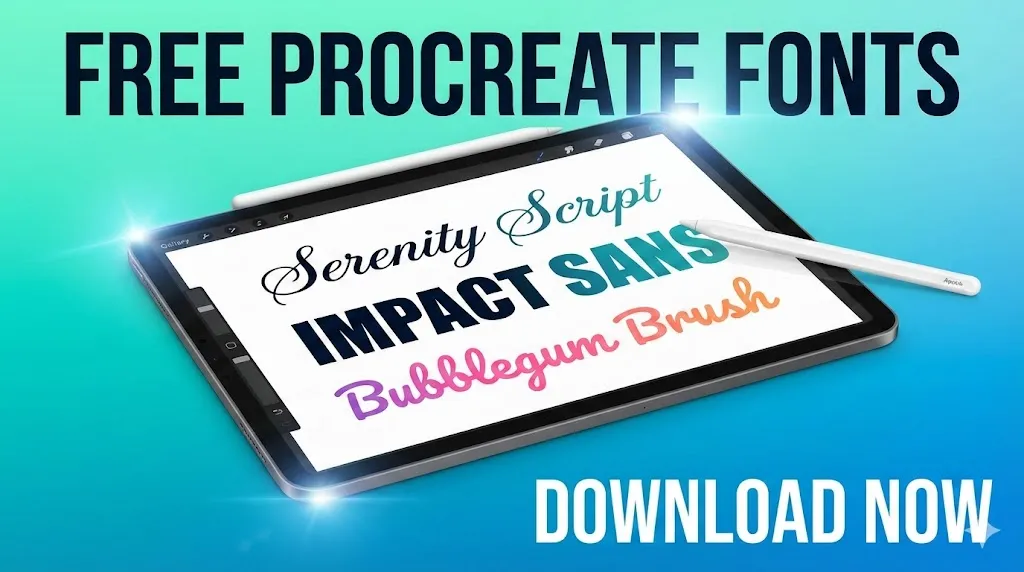
You’ve just spent three hours perfecting your digital illustration in Procreate. The colors are vibrant, the composition is balanced, and every brushstroke tells a story. Now comes the moment to add text—maybe a motivational quote, a brand logo, or the perfect caption.
You tap the text tool, excited to complete your masterpiece. But then reality hits: you’re staring at the same boring system fonts that everyone else uses. Your stunning artwork deserves better typography, but you’re not sure where to start or how to find quality Procreate fonts that won’t cost a fortune.
Sound familiar?
Here’s the truth: the right Procreate fonts can transform your digital art from amateur to professional in seconds. Whether you’re creating social media graphics, designing custom logos, or adding personality to your illustrations, typography makes all the difference.
In this comprehensive guide, you’ll discover the best free Procreate fonts for every style, learn the exact installation process (even if you’re a complete beginner), and unlock the typography secrets that professional digital artists use to make their work stand out.
Let’s elevate your Procreate typography game and give your artwork the visual voice it deserves.
Table of Contents
What Are Procreate Fonts and How Do They Work?
Before we dive into downloading beautiful Procreate fonts, let’s clear up a common misconception that confuses many digital artists.
Procreate fonts aren’t actually stored inside the Procreate app itself. Instead, Procreate accesses fonts that are installed on your iPad’s operating system. When you install a font on your iPad, it automatically becomes available in Procreate’s text tool—that handy “Aa” icon in your toolbar.
This is different from Procreate brushes, which you import directly into the app. Think of it this way: brushes live in Procreate’s house, but fonts live in your iPad’s house, where all apps can visit them.
Understanding Font File Types for Procreate
Not every font file you find online will work with your iPad. Here’s what you need to know about Procreate fonts compatibility:
TrueType Fonts (.ttf) – These are the most common and reliable Procreate fonts format. They install smoothly on iOS and work flawlessly in Procreate. If you’re new to installing fonts, stick with .ttf files for a hassle-free experience.
OpenType Fonts (.otf) – These professional-grade Procreate fonts often include advanced features like ligatures (connected letters) and alternate characters. They’re perfect when you want sophisticated typography with extra flourishes and variations.
Web Fonts (.woff, .woff2) – Here’s the catch: these won’t work as Procreate fonts. They’re designed exclusively for websites. If you encounter these formats, you’ll need to find the .ttf or .otf version instead.
The simple test: if you can tap the font file on your iPad and see an “Install” button, it’s compatible with Procreate fonts.
Best Free Procreate Fonts for Every Design Style
Let’s explore the most beautiful, versatile, and completely free Procreate fonts you can download right now. These fonts cover every style you’ll need for your digital art projects.
Elegant Script Procreate Fonts
Auraluxe Font – When you need luxury and sophistication in your Procreate fonts collection, Auraluxe delivers. This elegant script font features flowing letterforms with beautiful swashes that add drama to wedding invitations, high-end branding, and premium product designs. The sophisticated curves make it one of the most versatile script Procreate fonts for formal projects.
Bestie Font – This friendly script has become one of the most popular Procreate fonts for lifestyle content creators. The handwritten charm feels personal and approachable, making it perfect for inspirational quotes, social media graphics, and designs where you want to connect authentically with your audience. It’s the kind of font that makes viewers feel like you’re speaking directly to them.
Hello Font – Among casual script Procreate fonts, Hello stands out for its cheerful, bouncy personality. The playful baseline gives your text character while maintaining excellent readability. This font works beautifully for greeting cards, playful branding, blog headers, and any design that needs warm, welcoming energy.
Playful & Creative Procreate Fonts
Bumiku Font – If you’re searching for organic, whimsical Procreate fonts, Bumiku is your answer. The hand-drawn, rounded letterforms bring authentic, handcrafted energy to children’s book illustrations, nature-themed designs, and eco-friendly branding. Among playful Procreate fonts, this one manages to feel both fun and sophisticated.
Disney Font – Capture the magic of everyone’s favorite animation studio with this iconic font. Among themed Procreate fonts, the Disney style is instantly recognizable and perfect for fan art, children’s party invitations, magical designs, and nostalgic projects. The letterforms transport viewers straight to childhood memories.
Doodle Delight Font – For artists who love quirky, hand-sketched aesthetics, this ranks among the most creative Procreate fonts available. Each letter looks like it was drawn in an artist’s journal, making it perfect for informal designs, artistic projects, and anywhere you want to showcase your creative, authentic side. This font pairs beautifully with illustration work.
Bold Display Procreate Fonts
Cowboy Howdy Font – When you need attention-grabbing Procreate fonts with Western flair, look no further. This bold, rustic font brings authentic cowboy charm to country music posters, ranch branding, rodeo graphics, and Americana designs. Among the display Procreate fonts, this one makes a confident, impossible-to-ignore statement.
Giant Impact Grotesque Sans Font – For modern, minimalist Procreate fonts, this geometric sans-serif commands attention without aggression. The clean lines and perfect proportions make it one of the most versatile Procreate fonts for logos, headers, tech branding, and contemporary designs. It speaks with authority while maintaining approachability.
Specialty & Themed Procreate Fonts
Famely Font – Among cozy, heartwarming Procreate fonts, Famely creates an instant emotional connection. The warm, inviting letterforms are perfect for family-oriented designs, personal branding, mom blogs, and lifestyle content that celebrates togetherness and home.
Farmhouse Font – This rustic font captures the modern farmhouse aesthetic that dominates Pinterest and Instagram. Among country-style Procreate fonts, it’s perfect for home decor designs, recipe cards, farm-to-table branding, and projects celebrating simple, authentic living. The letterforms feel both vintage and contemporary.
Marshmallow Font – Soft, rounded, and delightfully puffy, this font brings sweetness to your Procreate fonts library. The cloud-like letterforms are perfect for dessert branding, children’s content, comfort-focused designs, and anywhere you want to evoke feelings of joy and warmth. It’s playful without being childish.
Want to enhance your Procreate fonts with stunning effects? Check out our curated collection of the best free Procreate brushes that pair perfectly with these fonts for incredible lettering results.
How to Install Procreate Fonts on iPad (Complete Guide)
Installing Procreate fonts is simpler than you might think. Even if you’ve never installed a font before, this step-by-step process will have you adding beautiful typography to your artwork in under two minutes.
Easy Installation Method for Procreate Fonts
- Download your chosen Procreate fonts – Click any download button above to get your .ttf or .otf font file. It will save to your iPad’s Downloads folder automatically.
- Open the Files app – Look for the blue folder icon on your iPad. This is Apple’s built-in file manager, where your Procreate fonts live before installation.
- Find your downloaded Procreate fonts – Navigate to the Downloads folder (or wherever you saved the font file).
- Tap the font file – A preview screen appears showing what your Procreate fonts will look like with sample text.
- Tap “Install” in the top corner – Your iPad may ask for Face ID, Touch ID, or your passcode to confirm.
- Open Procreate and access your new fonts – Launch Procreate, tap the text tool (Aa), and your newly installed Procreate fonts appear in the font list immediately. No restart needed!
Pro tip for managing Procreate fonts: If you download multiple fonts at once, they often come in a .zip file. Simply tap the .zip in Files app to extract, then install each Procreate font file separately.
Troubleshooting Procreate Fonts Installation Issues
Problem: Your Procreate fonts won’t install
- Make sure the file is .ttf or .otf format (not .woff or other web formats)
- Check that you have storage space available on your iPad
- Verify the font file isn’t corrupted by re-downloading it
Problem: Procreate fonts are installed, but don’t appear in the app
- Force close Procreate completely (swipe up from the bottom, swipe the app away)
- Reopen Procreate and check the text tool again
- Verify installation by going to Settings > General > Fonts on your iPad
- If still missing, restart your entire iPad
Problem: Procreate fonts look different than expected
- Some fonts have multiple weights or styles—make sure you installed the correct file
- Check that your text layer settings (opacity, blend mode) aren’t affecting the appearance
- Verify you’re viewing at 100% zoom for an accurate preview
Mastering Procreate Fonts: Pairing and Combination Secrets
Choosing great Procreate fonts is only half the battle. The real magic happens when you learn to pair them effectively. Here’s how professional designers create stunning typography combinations.
Essential Rules for Combining Procreate Fonts
Create contrast between your Procreate fonts – Pair elegant script Procreate fonts with clean sans-serifs. Combine bold display Procreate fonts with subtle body text fonts. This visual contrast creates hierarchy and guides your viewer’s eye naturally through your design.
Limit your Procreate font selection – Use 2-3 fonts maximum per design. More than that, and your artwork becomes visually chaotic. Think of it like seasoning food—a few quality ingredients beat dumping everything from your spice rack.
Establish a clear hierarchy with your Procreate fonts – Your headline font should demand attention. Your body text font should prioritize readability. Your accent font should add personality without overwhelming. Each font plays a specific role.
Consider mood consistency across Procreate fonts – Don’t pair a playful, bouncy font with a serious corporate font unless you’re deliberately creating tension. Your Procreate fonts should work together to support your design’s overall message and aesthetic.
6 Proven Procreate Fonts Combinations That Always Work
- Auraluxe + Giant Impact Sans – Luxury script meets modern minimalism. This combination of elegant and geometric Procreate fonts works beautifully for high-end branding, boutique marketing, and sophisticated social media content.
- Bestie + Farmhouse – Friendly script balanced with rustic charm. These Procreate fonts create the perfect cozy aesthetic for lifestyle blogs, home decor brands, and authentic, down-to-earth designs.
- Cowboy Howdy + Famely – Bold Western display with warm family appeal. This unexpected pairing of Procreate fonts works for country-themed events, ranch branding, and Americana with heart.
- Hello + Bumiku – Playful meeting whimsical. These two organic Procreate fonts create delightful energy perfect for children’s content, nature brands, and feel-good designs.
- Disney+ + Marshmellow – Magical nostalgia with soft sweetness. These complementary Procreate fonts are ideal for party invitations, childhood-themed projects, and anything that needs enchantment.
- Doodle Delight + Giant Impact Sans – Artistic quirk balanced with geometric stability. This contrast between creative and structural Procreate fonts works for artist portfolios, creative agencies, and designs celebrating both imagination and professionalism.
Creative Techniques for Using Procreate Fonts
Once you’ve installed beautiful Procreate fonts, it’s time to push beyond basic text. Here are advanced techniques that professional artists use to make their Procreate fonts stand out.
Texture Masking with Procreate Fonts
Type your text using any of your Procreate fonts, rasterize the layer, then apply texture brushes over the letters. This technique creates weathered, vintage, watercolor, or painted effects that transform digital Procreate fonts into artwork that feels hand-crafted and organic.
3D Typography Effects
Duplicate your Procreate fonts layer multiple times, offset each layer slightly in different directions, and use shadows, highlights, and color variations to create dimensional lettering. This technique makes flat Procreate fonts pop off the screen with depth and drama.
Using Procreate Fonts as Lettering Guides
Here’s a professional secret: type your text with Procreate fonts, lower the opacity to about 30%, lock the layer, then hand-letter over it with your favorite brush. You get perfect proportions and spacing from the Procreate fonts while adding personalized, human touch to the final lettering.
Clipping Masks for Dynamic Procreate Fonts
Place photos, gradients, or textures in layers above your Procreate fonts text, create a clipping mask, and watch your typography fill with stunning imagery. This technique works especially well with bold display Procreate fonts that have strong, readable shapes.
For even more creative possibilities, combine your Procreate fonts with professional techniques from Creative Bloq’s Procreate tutorials to master advanced lettering effects.
Where to Find More Procreate Fonts
Beyond the free Procreate fonts collection I’ve shared, here are trusted sources for expanding your typography library.
Best Free Procreate Fonts Resources
Google Fonts – The ultimate free source for quality Procreate fonts. Every font here is open-source and free for commercial use. With over 1,400 font families, you’ll find Procreate fonts for every imaginable style. Simply download the font family, transfer the .ttf files to your iPad, and install.
DaFont – A massive collection of free and premium Procreate fonts organized by category. Quality varies significantly, so be selective. Always check the license information (displayed next to each font) before using in commercial work. Filter by “100% Free” to avoid licensing complications.
FontSpace – Another excellent source for free Procreate fonts with clear commercial-use filters. The collection includes both professional designs and independent creator fonts.
Premium Procreate Fonts Worth the Investment
Creative Market – When you’re ready to invest in professional Procreate fonts, Creative Market offers exceptional quality from independent designers. They also provide weekly freebies—sign up for their newsletter to get notified when new free Procreate fonts drop.
MyFonts – One of the largest professional font marketplaces with extensive Procreate fonts suitable for commercial work. Great for finding unique typefaces that set your work apart.
Envato Elements – For unlimited access to thousands of Procreate fonts, this subscription service offers incredible value. One monthly fee unlocks their entire library of fonts, graphics, and templates.
FAQ: Common Questions About Procreate Fonts
How do I install Procreate fonts on my iPad?
Installing Procreate fonts is simple: download the .ttf or .otf font file to your iPad, open the Files app, tap the font file, and select “Install.” The font immediately becomes available in Procreate’s text tool under the Aa icon. No additional apps or complicated steps required.
Do Procreate fonts work on iPhone, too?
Yes! Since Procreate fonts are installed at the iOS system level, any fonts you install are accessible across all your iOS apps, including Procreate Pocket on iPhone. Install once, use everywhere.
Are there free Procreate fonts for commercial use?
Absolutely! All the Procreate fonts I’ve shared in this guide are free for both personal and commercial use. However, always verify the specific license terms included with each font download before using in client work or products you sell.
What’s the difference between Procreate fonts and lettering brushes?
Procreate fonts are installed typefaces that you access through the text tool—they remain editable as text. Lettering brushes are drawing tools you use to hand-create letterforms. Think of Procreate fonts as typing and lettering brushes as handwriting.
Why aren’t my Procreate fonts showing up in the app?
If your newly installed Procreate fonts aren’t appearing, try force-closing Procreate completely and reopening it. If that doesn’t work, verify the fonts installed correctly by checking Settings > General > Fonts on your iPad. Sometimes a device restart resolves persistent font display issues.
How many Procreate fonts should I install?
While there’s no technical limit to Procreate fonts you can install, having hundreds of fonts can slow down your device and overwhelm your selection process. Most professional artists maintain a curated collection of 20-50 versatile Procreate fonts they actually use regularly.
Can I create my own Procreate fonts?
Yes! You can create custom fonts using apps like Calligraphr (which turns your handwriting into a font) or professional software like Glyphs or FontLab. Once created, install your custom Procreate fonts the same way as any other font.
Do Procreate fonts work in other apps?
Yes! Since Procreate fonts are installed at the iPad system level, they work in any app that supports custom fonts, including Keynote, Pages, Canva, and many other design apps.
Start Creating with Beautiful Procreate Fonts Today
Typography isn’t just text on a canvas; it’s the voice, personality, and emotional tone of your visual art. The right Procreate fonts give your illustrations professional polish, your quotes emotional resonance, and your designs that intangible quality that makes viewers stop scrolling and truly engage with your work.
You don’t need a massive library to start. Pick three versatile Procreate fonts from this guide: choose one elegant script (Auraluxe or Bestie), one bold display font (Cowboy Howdy or Giant Impact Sans), and one playful option (Bumiku or Marshmellow). Download them using the buttons above, install them on your iPad, and start experimenting.
Practice the pairing principles we covered. Play with the creative techniques. Most importantly, don’t let perfectionism stop you from creating. Every professional lettering artist and designer started exactly where you are right now, curious, a little uncertain, but willing to take that first step.
The beautiful Procreate fonts you’ve discovered today are tools, but your unique artistic vision is what transforms them into something special. Your style, your combinations, your creative choices—that’s what will make your work memorable.
Ready to take your digital art even further? Complement your new Procreate fonts with our free Procreate brushes collection, designed to enhance your typography with textures, effects, and lettering tools that professional artists love.
Your typography journey begins now. Download your first Procreate fonts, open that blank canvas, and create something that’s authentically, beautifully you.