
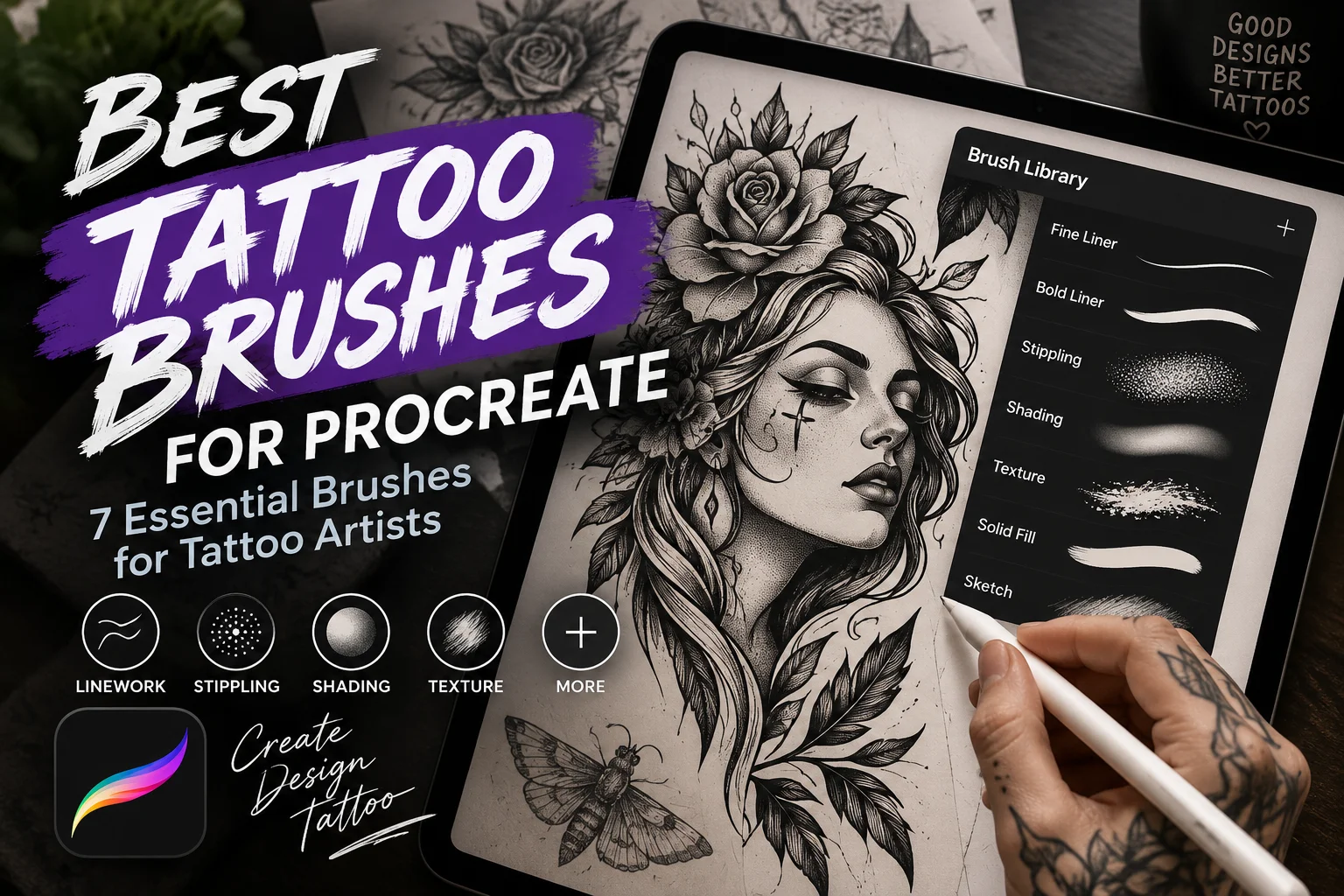
A tattoo design often starts long before a needle touches skin. You may begin with a rough idea, a few loose lines, or a reference that you want to turn into something completely your own. When you work digitally, the brushes you choose can make that process feel natural—or surprisingly frustrating.
That is why choosing the right tattoo brushes for Procreate matters. A clean liner can help you build confident outlines, while a good stippling brush can save time when creating dotwork and textured shadows. You can also build custom brushes that respond to the way you personally draw.
In this guide, you’ll learn what brushes tattoo artists use on Procreate, which brush types work for different tattoo styles, and how to make your own Procreate tattoo brushes.
If you’re building your digital tattoo setup, you can also explore the free and specialized Procreate resources available at Free Procreate Brushes.
What Are Procreate Tattoo Brushes?
Procreate tattoo brushes are digital brushes selected or customized for creating tattoo concepts, flash sheets, linework, dotwork, shading, and other tattoo-inspired illustrations.
There isn’t one brush that works for every tattoo artist. Your ideal brush depends on the style you’re creating.
For example, a fine-line artist may want a smooth brush with a delicate pressure-sensitive taper. A traditional tattoo illustrator may prefer a bold, opaque inking brush. If you’re working on blackwork or dotwork, your priorities will be different again.
Why Tattoo Artists Use Procreate Brushes
A digital workflow gives you room to experiment before committing to a final design. You can:
- Sketch ideas quickly
- Create smooth linework
- Test different line weights
- Build symmetrical designs
- Experiment with colors
- Add stippling and textured shading
- Separate your sketch, lines, color, and shadows into layers
- Create reusable tattoo flash artwork
With a well-organized brush library, you can move from a rough sketch to polished artwork without constantly searching through hundreds of brushes.
What Brushes Do Tattoo Artists Use on Procreate?
Tattoo artists can use a combination of sketching, lining, shading, stippling, coloring, and texture brushes in Procreate. The exact combination depends on your personal drawing technique and tattoo style.
Here are seven useful categories to consider.
1. Sketching Brushes
A sketch brush is usually where your design begins.
You want something responsive enough for quick shapes and loose ideas without making you worry about perfect lines.
Sketching brushes work particularly well for:
- Initial concepts
- Anatomy studies
- Composition
- Floral arrangements
- Character poses
- Rough tattoo layouts
A pencil-style brush with pressure sensitivity can give you a familiar drawing experience.
2. Fine Line Tattoo Brushes
If you create minimalist, botanical, ornamental, or fine-line designs, a clean liner is one of the most important tattoo brushes in your collection.
Look for a brush that produces smooth edges and responds predictably to pressure.
Your fine liner should work well for small details without becoming rough or inconsistent when you reduce its size.
3. Bold Tattoo Liner Brushes
Traditional and neo-traditional artwork often calls for heavier outlines.
A bold liner should create an opaque, controlled stroke that remains consistent through curves and longer lines.
It can be useful for:
- American traditional designs
- Neo-traditional artwork
- Bold flash
- Cartoon-inspired tattoos
- Graphic blackwork
4. Stippling and Dotwork Brushes
Placing thousands of individual dots manually is possible, but it can take a long time. A purpose-built stippling brush lets you produce repeated dots while still controlling their density and placement.
Stipple brushes are useful for:
- Dotwork
- Blackwork
- Skulls
- Mandalas
- Botanical illustrations
- Vintage engraving effects
- Textured shadows
If this is the style you enjoy, the Tattoo Art Brushes for Procreate collection is worth exploring for tattoo-oriented linework, stippling, and shading.
5. Tattoo Shading Brushes
Shading gives your drawing depth.
Depending on the tattoo style, you may want a soft shader, grain brush, stippling shader, or textured ink brush.
Instead of trying to make one brush perform every task, keep one or two shading brushes that give you predictable results.
6. Solid Fill Brushes
An opaque brush is useful when you’re creating large black shapes or solid areas of color.
This becomes particularly important in bold traditional and blackwork designs where clean silhouettes contribute heavily to the final composition.
7. Texture Brushes
Texture brushes can add a handmade quality to digital artwork.
They are useful for vintage flash, engraving effects, distressed illustrations, and stylized shading. Use them carefully, however. Too much digital texture can distract from the actual tattoo design.
Best Tattoo Brushes for Different Tattoo Styles
Your tattoo style should guide your brush selection.
| Tattoo Style | Recommended Brush | Best Use |
|---|---|---|
| Fine Line | Fine liner | Delicate outlines and details |
| Traditional | Bold liner | Strong, consistent outlines |
| Blackwork | Opaque inker | Solid black areas |
| Dotwork | Stipple brush | Controlled dot shading |
| Realism | Soft shader | Smooth tonal transitions |
| Neo-Traditional | Liner + shader | Defined lines and dimensional shading |
| Botanical | Fine liner | Leaves, flowers and delicate details |
| Engraving | Fine liner + texture | Hatching and vintage texture |
Tattoo Brushes for Floral Designs
Flowers are especially popular subjects for digital tattoo artwork because they work across fine-line, traditional, blackwork, and ornamental styles.
Instead of drawing every flower from scratch, stencil brushes can also help you develop compositions and references faster.
You can explore the 40 Peony Tattoo Stencil Brushes for Procreate if you regularly create floral tattoo concepts.
How to Choose the Best Tattoo Brushes for Procreate
Don’t judge a brush from one sample stroke.
Create a blank canvas and test each brush with:
- A straight line
- A long curve
- A small circle
- Thin details
- Thick strokes
- Light pressure
- Heavy pressure
- Quick strokes
Check Pressure Sensitivity
Your Apple Pencil pressure can influence size, opacity, and other aspects of the stroke depending on how a brush is configured.
A good liner should feel predictable in your hand rather than forcing you to fight against its settings.
If you’re setting up Procreate for tattoo illustration, you can check the current Apple Pencil options on Amazon.
Test Stabilization
Stabilization can help smooth your strokes, particularly when you’re creating long curves.
More isn’t automatically better. Excessive stabilization can make a brush feel disconnected from your hand. Experiment until you find a balance that works with your drawing style.
How to Make Tattoo Brushes in Procreate
One of Procreate’s biggest advantages is the ability to customize brushes through Brush Studio.
You don’t necessarily need to build everything from zero. You can duplicate a brush you already like and experiment with the duplicate while preserving the original.
Step 1: Start With the Brush Shape
The shape influences the mark your brush repeatedly makes.
A simple round shape can work well for clean liners, while irregular shapes can produce more textured results.
Step 2: Adjust the Grain
Grain influences the texture you see within or along the brush stroke.
For a clean tattoo liner, you may want very little visible texture. For vintage or shaded artwork, more noticeable grain can be useful.
Step 3: Adjust Stroke Behavior
Spacing changes the distance between repeated brush impressions.
Low spacing helps create a continuous-looking line. Increasing spacing can produce separated marks, which is particularly useful when developing stipple brushes.
Step 4: Configure Apple Pencil Response
Experiment with how pressure affects your brush.
For example, you might configure pressure so that pushing harder produces a thicker line. The right settings depend on how you naturally hold and use your Pencil.
Step 5: Adjust Stabilization
Test your brush with several stabilization settings rather than immediately choosing the highest value.
Draw long curves, circles, short details, and quick lines until the brush responds naturally.
Step 6: Save and Test Your Brush
Before using your new brush on finished artwork, create a dedicated test sheet.
Try thin-to-thick transitions, circles, curves, small details, and different drawing speeds.
How to Make a Stipple Tattoo Brush in Procreate
A custom stipple brush can be particularly useful if you create dotwork.
Start with an appropriate dot-like shape source and then adjust the stroke spacing so the individual impressions become visible.
From there, experiment with settings affecting distribution, size variation, and pressure.
The goal isn’t necessarily perfect uniformity. Slight controlled variation can make digital stippling appear more organic.
Test three different densities:
- Light stippling for subtle shadows
- Medium stippling for form
- Dense stippling for dark areas
Avoid creating all your shading with one density. Gradual changes in dot concentration can make your artwork feel much more dimensional.
A Simple Procreate Tattoo Design Workflow
You don’t need dozens of brushes to create a complete design.
A practical workflow might look like this:
- Sketch: Develop the basic composition with a pencil brush.
- Refine: Lower the sketch opacity and create a cleaner drawing above it.
- Line: Use your chosen fine or bold liner.
- Fill: Add solid black or color areas on separate layers.
- Shade: Introduce stippling, soft shading, or texture.
- Review: Zoom out and check whether the design still reads clearly.
- Present: Prepare a clean version of your concept or flash artwork.
For a comfortable mobile illustration setup, you can also view this iPad option on Amazon.
Affiliate disclosure: Some links in this article are affiliate links. If you purchase through them, the website may earn a commission at no additional cost to you.
Free vs. Premium Procreate Tattoo Brushes
Free brushes can be more than enough when you’re learning Procreate or experimenting with a new style.
Premium brush packs become useful when you want a more specialized collection designed around a particular workflow.
| Feature | Free Brushes | Premium Brushes |
|---|---|---|
| Cost | Free | Paid |
| Good for beginners | Yes | Yes |
| Specialized options | Varies | Often broader |
| Customizable | Yes | Yes |
| Best for | Learning and experimenting | Specialized workflows |
Don’t assume a paid brush automatically makes better artwork. Your familiarity with the tool matters far more than the number of brushes you own.
Common Tattoo Brush Mistakes to Avoid
Even a great brush can produce poor results when it isn’t used appropriately.
Try to avoid:
- Collecting hundreds of brushes you never use
- Switching brushes every few minutes
- Applying too much stabilization
- Using excessive texture
- Ignoring pressure settings
- Drawing only while heavily zoomed in
- Using one brush for every stage of your artwork
A small collection that you know extremely well can be much more practical.
FAQ About Tattoo Brushes
What brushes do tattoo artists use on Procreate?
Tattoo artists commonly use pencil brushes for sketching, fine and bold liners for linework, opaque inkers for solid shapes, stippling brushes for dotwork, and shading brushes for depth and texture.
What are the best tattoo brushes for Procreate?
The best tattoo brushes depend on your style. Fine-line artists need precise tapered liners, while traditional artists may prefer heavier ink brushes. Dotwork artists benefit from customizable stippling brushes.
How do you make tattoo brushes in Procreate?
You can create and customize brushes through Procreate’s Brush Studio. Start with the shape and grain, then adjust stroke behavior, pressure response, stabilization, and other settings until the brush suits your drawing technique.
Can you make a stippling tattoo brush in Procreate?
Yes. You can use a dot-like shape and adjust spacing and other brush properties to create repeated stippling marks. Experiment with density and variation until the effect matches your preferred style.
Are free Procreate tattoo brushes worth using?
Absolutely. Free tattoo brushes are a practical way to discover what types of liners, shaders, and texture brushes fit your workflow before expanding your collection.
Conclusion: Build a Tattoo Brush Set That Works for You
The best tattoo brushes aren’t necessarily the most complicated or expensive ones. They’re the brushes you can control confidently.
Start with a sketch brush, one or two liners, a solid inker, a shader, and a stippling brush. Learn how each one responds to your hand before adding more tools.
Once you understand how Procreate’s brush settings affect your lines and textures, start customizing your collection. Your goal isn’t to own hundreds of brushes—it’s to build a toolkit that helps you turn an idea into clean, expressive tattoo artwork.
Ready to experiment? Browse FreeProcreateBrushes.org, test different tattoo brushes, and start building a Procreate setup that fits the way you draw.